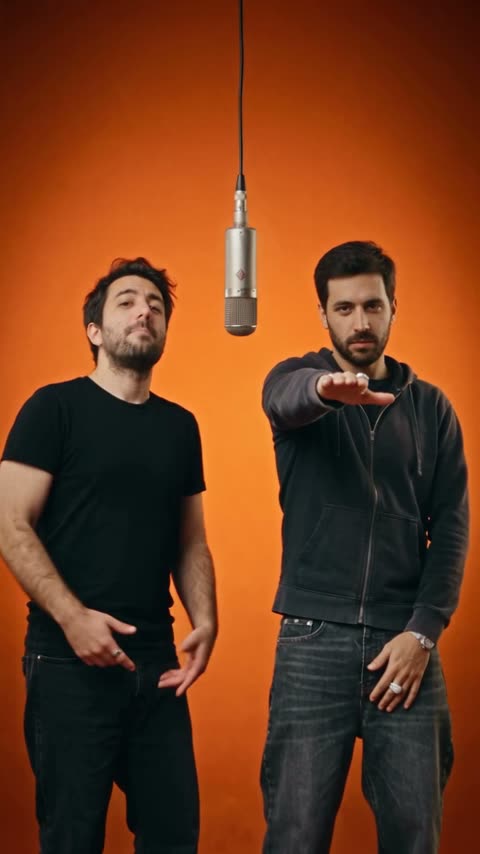
Learn how to create viral AI Hotel Lobby videos from two photos. Follow our easy steps, see real examples, and make your own video in seconds.
Orange booth · 9:16
JPG, PNG or WebP · up to 10 MB per photo
9:16 for TikTok & Reels
No app, no editing
No subscription
9:16Real output · sample people are AI-generated
Quick Answer
To create a viral-style AI Hotel Lobby video, upload two clear photos to an AI Hotel Lobby video generator, let the AI turn them into a performance-style video, then download and share the result on TikTok or Instagram Reels. For better results, use front-facing photos with good lighting and recognizable faces.
01
Choose Photos That Stand Out
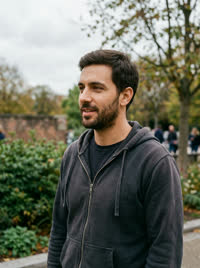
Start with two clear, well-lit photos where each subject is easy to recognize. A clean view of the face gives you a useful starting point for your first video.
PHOTO 1 · LEFTPHOTO 2 · RIGHT
Use one person or pet per photo, with the face and eyes clearly visible.
Choose similar camera angles and framing for both photos.
Avoid blurry images, heavy filters, covered faces and group shots.
You do not need a hotel background. Focus on clear subjects: Photo 1 appears on the left, and Photo 2 on the right.
02
Create Your AI Hotel Lobby Video
Use the generator at the top of this page to turn your two photos into a vertical performance video. Follow these three steps to make your first version.
ONE HOTEL LOBBY VIDEO15s · 9:16 · MP4
1Upload Photo 1 and Photo 2 into the two photo slots.
2Check that both subjects are visible and that the left and right order is correct.
3Click generate, complete sign-in or choose a video pack if prompted, then preview and download the finished clip.
Watch the full result for recognizable faces and natural movement. If something looks off, try a clearer source photo before generating again. Generation time can vary.
Give the finished clip a clear opening and a little context. Use a video editor or your posting app for these optional finishing touches.
Original frame
With a caption
POV: one mic, two besties, zero chill.
Caption placement example. Add your own text in a video editor or posting app.
Opening: trim any unnecessary lead-in so the subjects or action appear quickly.
Text: add one short line that sets up the scene, keeping it clear of both faces.
Sound: add a track you can use for your post, and preview how it fits the action.
The downloaded MP4 is silent. Add captions and audio in your editor or posting app; these are separate finishing steps.
04
Post Your Video for Maximum Reach
Prepare a post that is easy to understand at a glance. Choose a clear cover, add a caption that fits the scene and give viewers a natural reason to respond.
POST EXAMPLE•••
Preview the vertical video with the posting app controls visible. Keep faces and text unobstructed.
Choose a cover that shows the subjects clearly, then pair a short caption with one relevant question.
Follow the platform’s AI labeling requirements and review your actual post performance to guide your next version.
Reach varies; no caption or posting checklist guarantees views. Use the response to your post to decide what to try next.
THE CLIP IS ONLY HALF THE STORY
Give it a reason to be shared.
YOUR CAPTION STARTER
“POV: you and your bestie dropped one track and forgot how to act.”
These are caption ideas, not claims about views or engagement.
ONE LAST LOOK
Ready for the feed?
A quick final check can save you a second upload. Tick these off before your video leaves the camera roll.
0/4 checks completeWatch the full clip once before you hit publish.
A few things worth knowing.
Do I need prompts or video-editing experience?+
No. Get Hotel Lobby uses a fixed two-photo workflow. Upload your portraits, generate the clip, then use your posting app or editor to add audio and a caption.
Does the video come with music?+
No. The downloaded MP4 is silent. Add an appropriate track in your posting platform or editor and check that you can use it for your intended post.
Can I use photos of my pets?+
Yes. A clear, front-facing pet portrait can be used for either subject. Keep one subject in each image and avoid motion blur or tiny faces.
Will my video go viral?+
No one can promise that. This guide helps you create a clear, recognizable video and a stronger post setup. Audience response and distribution will vary.